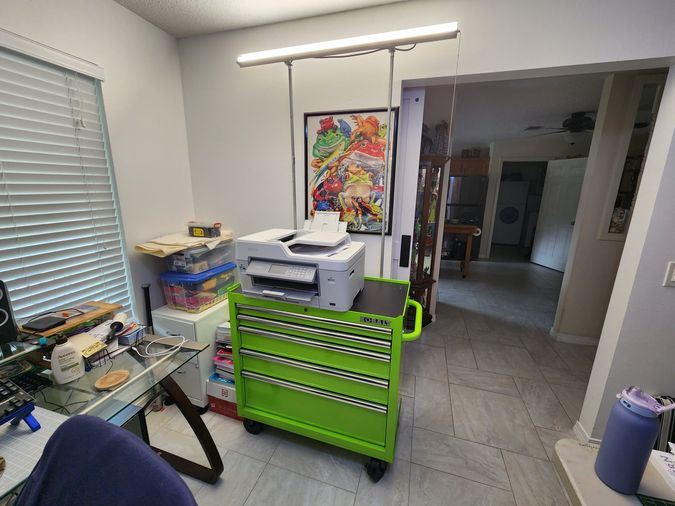
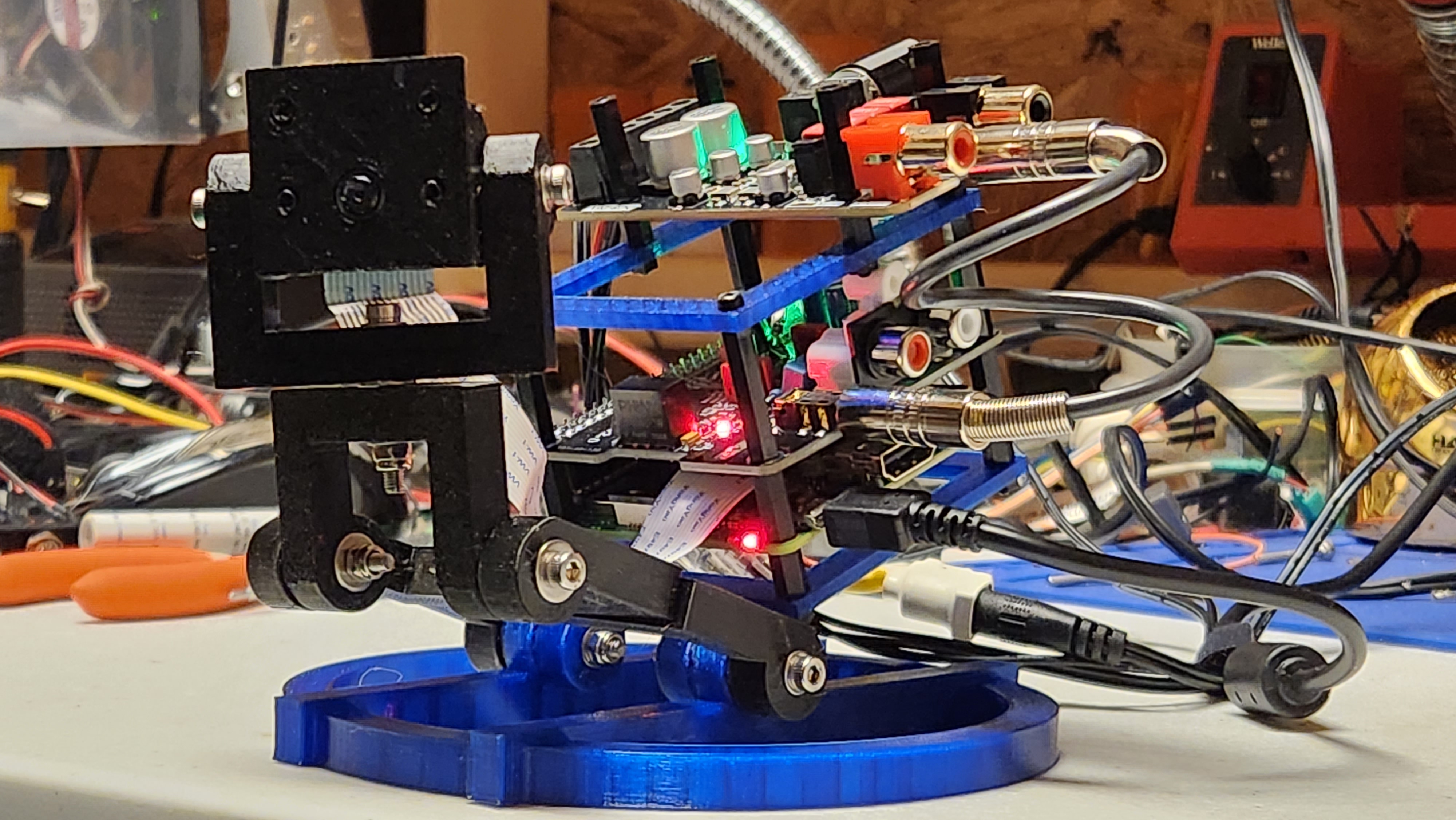
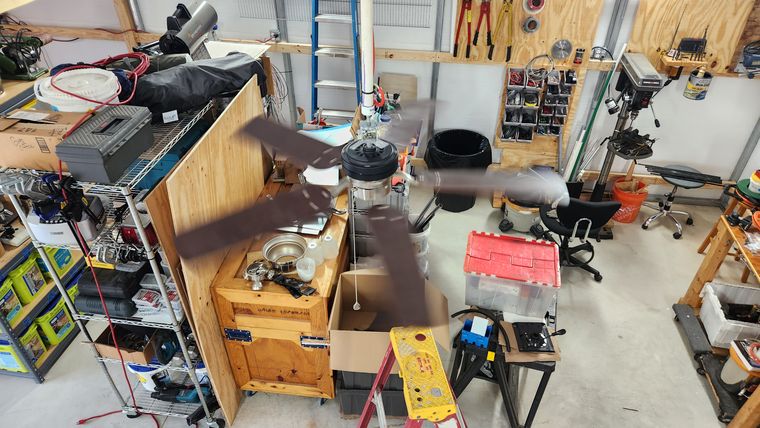
Made from materials I had on hand, this light stand more than just meets the need. It actually looks pretty good, imho. Not Tiffany good, but decent enough.
A New Hobby
My wife got a Brother Scan-n-Cut, and a whole new world of craft was born. Like any hobby, getting …
"Never judge a book by its cover." That's what I was taught at a young age. I understood it then, and I still follow the value of what that sentence communicates. How things appear on the outside may or may not …
Microsoft overstepped the bounds here. This cannot stand.
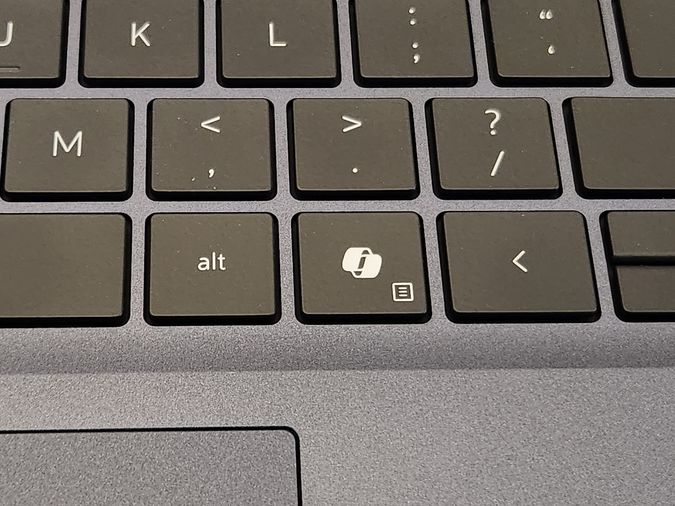
There is a Copilot key on my brand new Dell laptop. This will not do.
When confronted with unwanted change, one must compensate. I don't know who those people at Microsoft think they are, but this is my computer, and I will …
Every Situation Provides an Opportunity for Learning
So what can be gleaned from our current state?
I am an idealist. I think that is obvious to all who read my previous treatise. Don't be fooled by my complaints of unfulfilled expectations. I am aware of how one survives, yea, even …
I'm not happy with my personal physical state. I'm not happy with the state of The Union. I'm not happy with the state of human development. Not happy with the state of the environment. There just don't seem to be many things I am happy …
Octoprint is not new or exciting. But I figured it was still worth writing about. To clarify: OctoPi is my PiNet hostname for the hardware. Octoprint is the software.
If you have a 3D printer, you should consider Octoprint.
I first looked into Octoprint while waiting on my Prusa i3 …
Exponential Ignorance is one of the biggest problems facing mankind in our modern age.
In the old days (before radio, TV and the Internet), people shared ideas with relatively limited groups of people. The number of individuals one could influence were only a tiny fraction …
If I didn't watch TV, I wouldn't notice that fringe groups get the most attention. The entertainment industry loves fringe. From sitcoms to movies to the evening news and religious …
A PiNet Without Relays is Like a Day Without Sunshine.
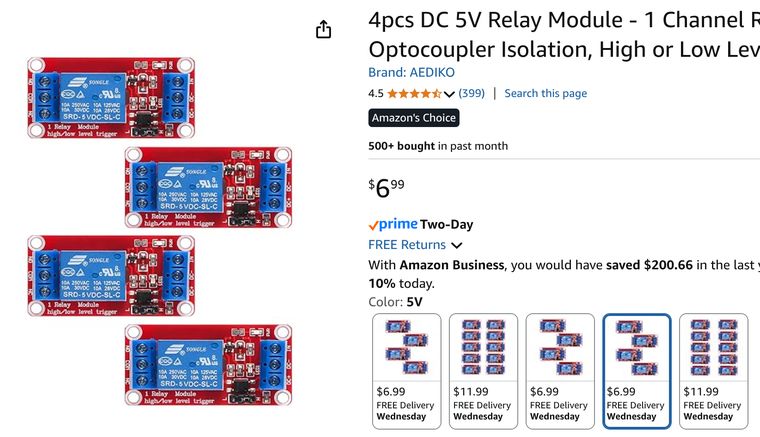
There is a host of small inexpensive microcontrollers available such as the Raspberry Pi's, Arduinos, and ESP32, and they are great for controlling stuff. But many things we want to control require more power than …
I wrote The Last Gasp of Trust a few days ago. I just updated that article to include a section titled, "(Dis)Trust and Verify". I needed a term to describe web content that had the quality of being actually generated by human …
I enjoyed the few years where we could trust at least some web search results.
I spent a brief stint as a website content writer in the early 10's. It was for several of the thousands of click-through sites designed both to be helpful and to …
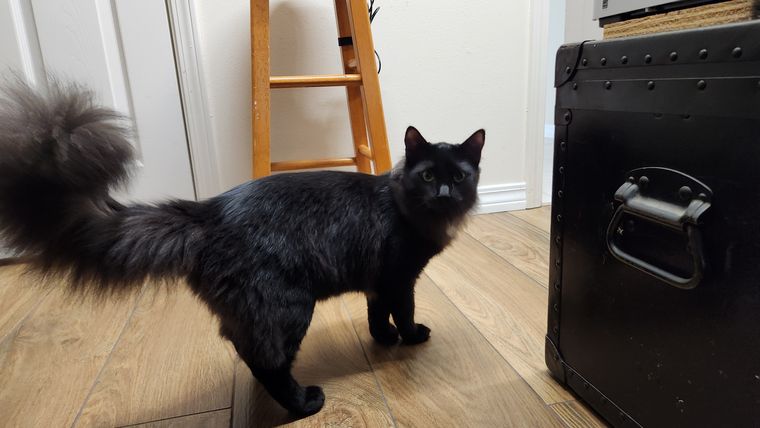
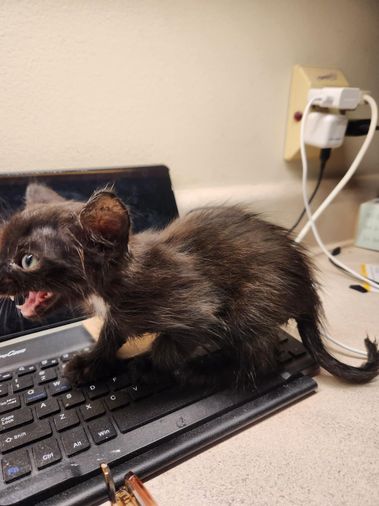
This rat-like creature has just had a bath. He looked much worse before that.
You may recall from my previous treatise that my wife found a pitiful mangy-looking furry object in our front flower bed late one night. She named him Charlie.
UNTENABLEadjectiveSomething that cannot be defended or maintained.
A situation that is not sustainable for the long term.
When You Don't Like It, Reason it Away.
Arisotle suggested reason, that is, rational thought, was the thing that mainly differentiated human-kind from other animate life-forms on the Earth. Since then …
Got my Pixel Series-A buds working with Renegade, the little Dell Inspiron 13-7378 laptop. This little guy is six years old, but truly is the best computer I've ever owned. But this is about getting the buds working with Linux Mint on this machine, not …
We are spoiled. All of us. Anyone born into the world of air conditioned summers is spoiled by that experience. We just don't want to even imagine life without that cooling hardware.
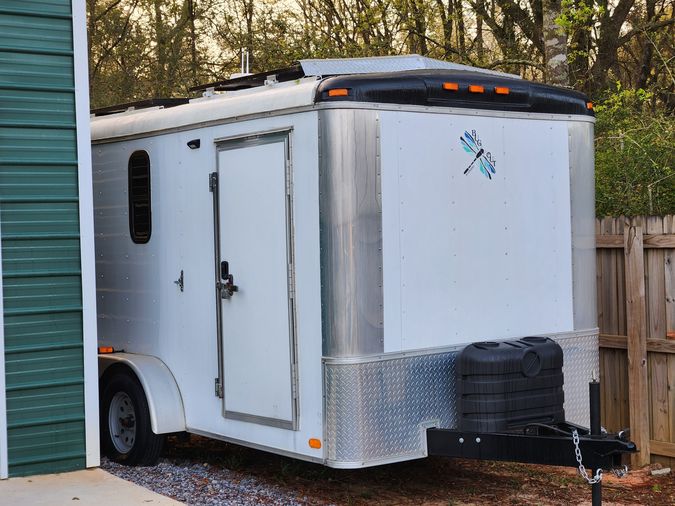
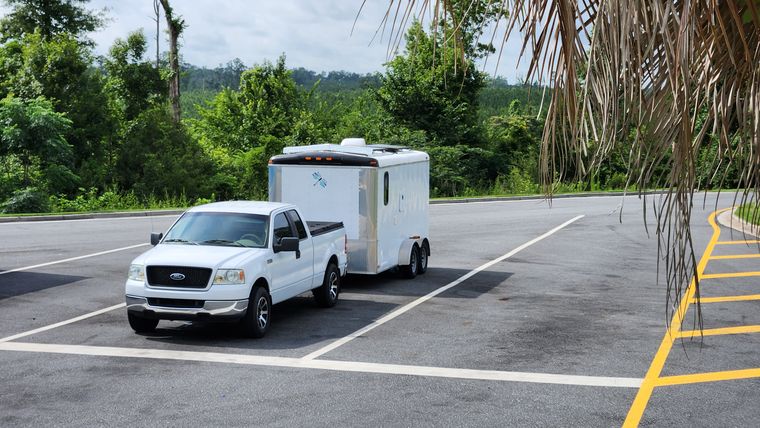
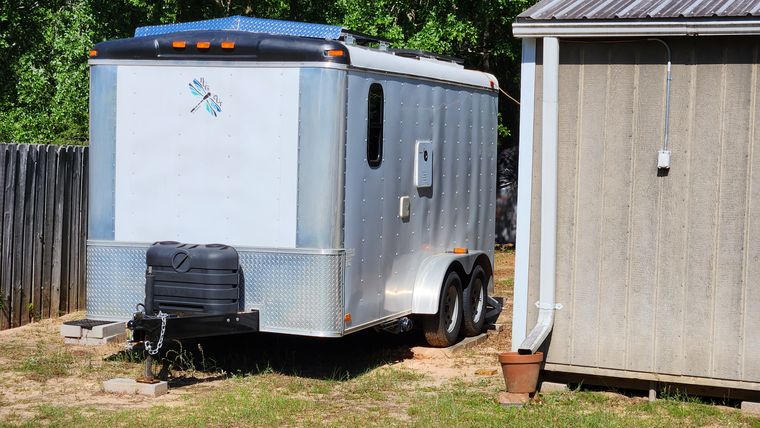
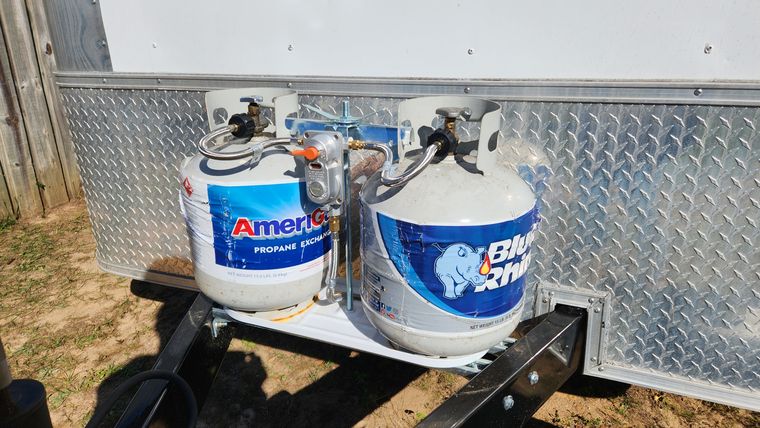
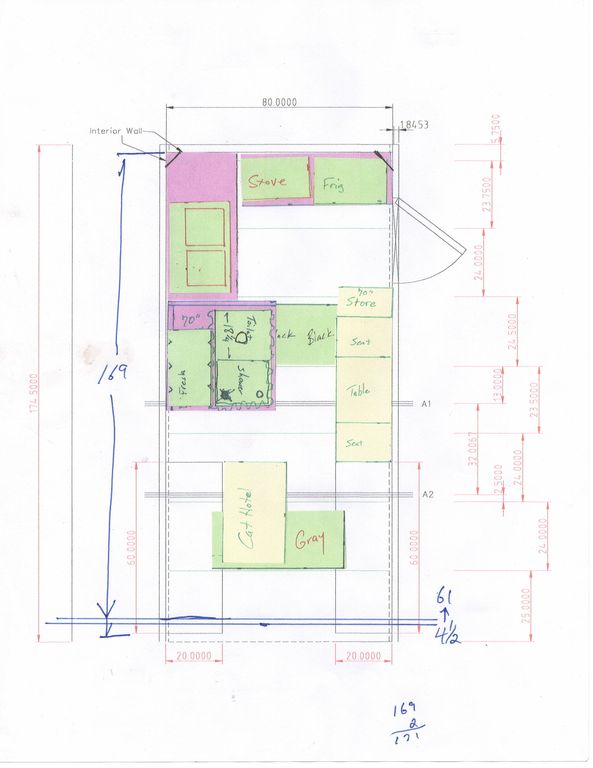
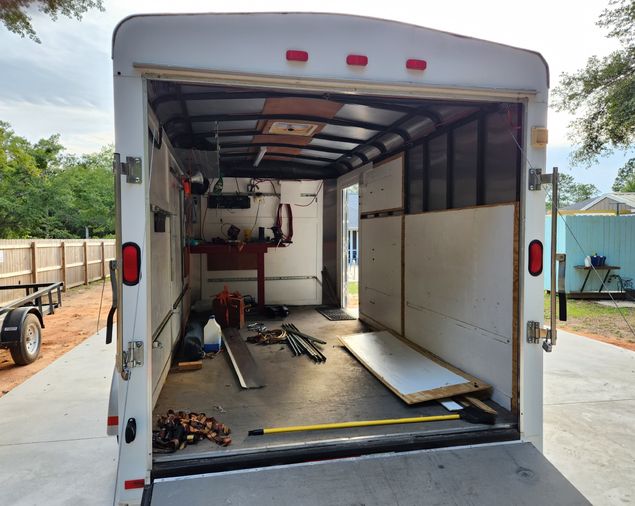
One of the more important functions of our Bug-out trailer is meal preparation. So a full 30% of the interior space goes to food storage and cooking and cleanup. No surprise there. We all love to eat …
If you got bad news, you wanna kick the blues,
Propane.
When your day is done, and you want to ride on,
Propane.
She don't lie, she don't lie, she don't lie.
Propane.
When I was thinking about fresh water, hot water, cold water, city water, water storage, water pump, water heater, etc., I was feeling a tad overwhelmed. It seemed like so much.
It seems a bit of a stretch to call this toilet/shower combination a 'bathroom', but 'shower/toilet combination' is just too hard to type over and over.
Here is a recent photo of all the pieces and parts.
Like everything else, it starts with pen and paper I write it down if I even think it might be important. Ideas are cheap and disposable. On the left are my earliest …
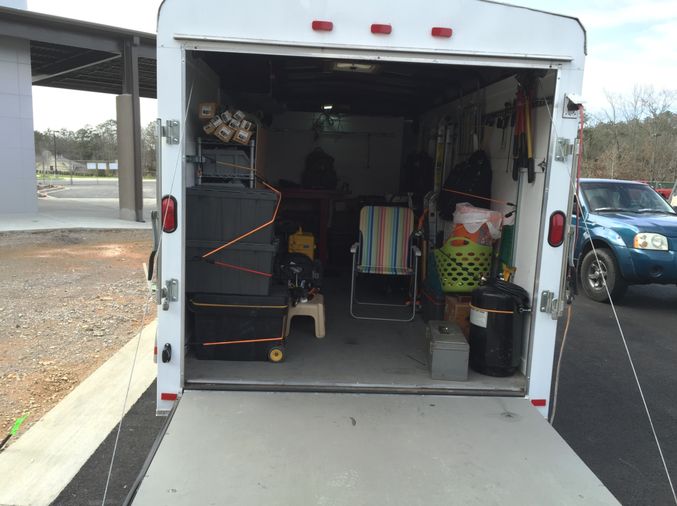
From 2006 until 2014 I was the sole proprietor, CEO and Chief Systems Engineer for Full Circuit Technologies, LLC. I normally flew everywhere and lugged my tools in huge Pelican cases in and out of …
The woods behind our house. Thick, full of danger.
The Sound
"Did you hear that?" I ask. "What?", she says. "I thought I heard a cat crying in the woods out there." She stops, listens and says, "No, I don't hear anything."
We all watch the world evolving from one where individuality and self-reliance was highly valued to one where social saturation and centralized everything is the norm. If knowledge is power (it is), then more and more power is concentrated …
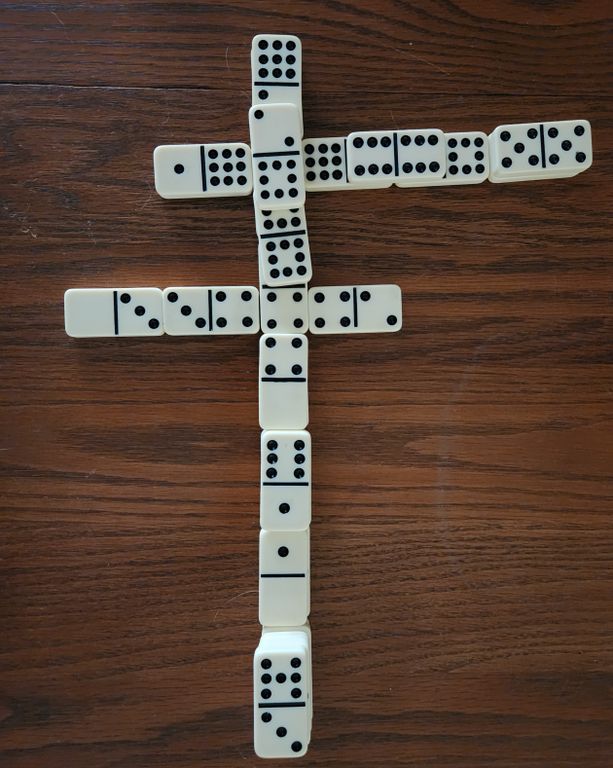
This is Stackernoes. We play with a double-nine set, but I don't think it matters.
This is Stackernoes
First thing let me say this: I did a reasonable search of the Internet for a similar game, and I didn't find one. So until proven otherwise, I'm under the impression I …
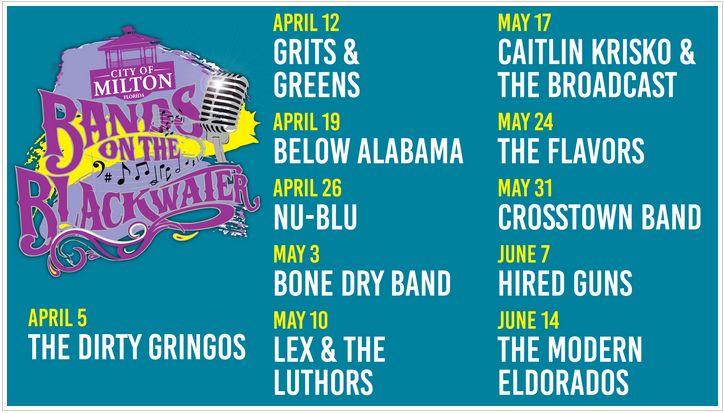
Bands on the Blackwater is a weekly series in my backyard. Not literally, but almost.
You might think that life in a small town in Northwest Florida would be boring. You might be right if you measure excitement by the number of drive-by shootings and bar brawls on an average …
We have a very natural Northwest Florida yard. That would be pretty much the opposite of a manicured yard. My basic philosophy is, if it is green and will grow in this sand, I'm not killing it. There are …
There's been quite a bit of stuff published in the past few weeks about the "dangers of spreadsheets". Excel in particular is being spotlighted as a dangerous tool hurting millions of people.
We are full to overflowing. Synapses connecting, linking, birthing ideas.
Surely the world needs to know what's on our mind. Our thoughts, our griefs, our passions, our angst. Our burden will not be confined. Our compulsion to exposit is strong. The urge …
It was the 1980's and the sky was the limit. The Internet was going to change the world . . . and it did. We were excited by all the possibilities, like a child on December 20th looking toward …
Ham radio is a hobby. It can be much more than that, but it goes well with a large dish of experimentation and learning. That's the biggest appeal to me.
Let one thing be perfectly clear: I am an old man.
I am past both the social and legal definition of retirement age. I still work full-time, and will continue to do so as long as they want me and I want …
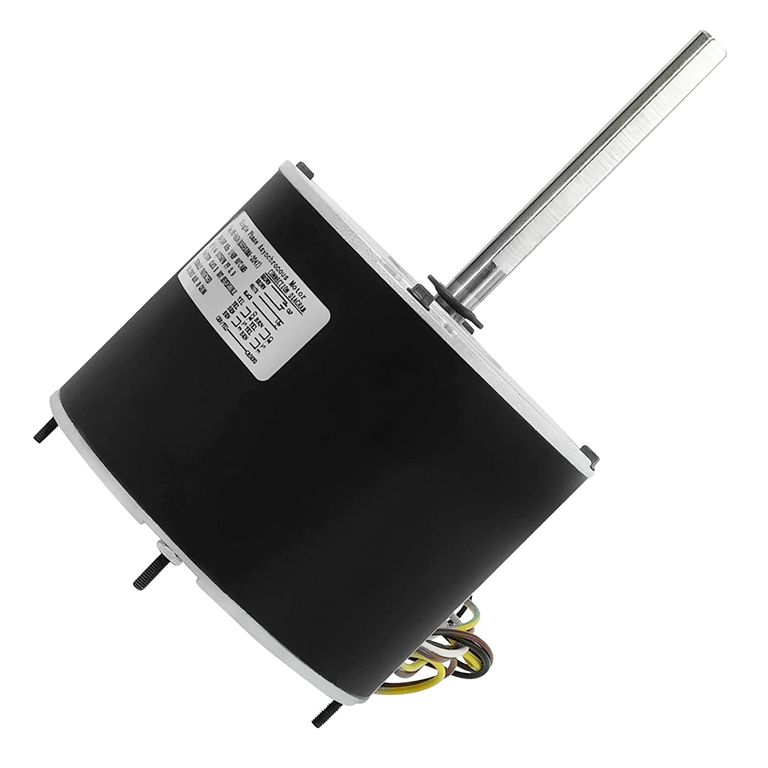
Image: It all started here: a condenser fan motor.
When I was a child I rarely needed a good reason to do a thing. When asked why I had done a thing, quite often my first response was, "Uh, I dunno. Just …
I was out in the back yard a week or so ago and just happened to see a bird perched happily on the pointy top of LilWeatherPi. I thought, "How nice," and went on about my business.
If you are an Excel guru, you probably don't need XMerge. But if you have a bunch of .csv or tab-delimited data files that you want to merge into one .xlsx file, this tool may be exactly what …
** I'm no dummy.** I know how to google a thing. But I struggled to solve this simple problem regardless of the fact that I have the entire Internet at my disposal.
I use VS Code on both Linux and Windows. I use an …
Melding My Diverse Personalities Into a Singularity
Multiple personalities can be fun until they turn into a mess. Then it's fun again when you find out you can clean up the mess quickly and easily. Such is the case here.
I chose 'casspop' as a username on Github a long …
Does this look like a project to you? It does to me.
It's one thing to read about recycling on the Internet, or to see kids shows promote the ideals of good stewardship of resources. It's another thing altogether to actually make something useful out of junk. I maintain the …
If I put the gallery at the top of a post, it got included in the post summary.
There were a few times when posts with galleries of images that were also the 'index.html' post (the featured post) had a problem. Their gallery would have …
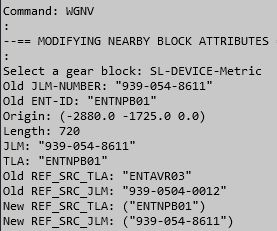
This fifth exercise uncovers the secrets of near-by blocks.
At work, we use a AutoLISP routine called CAF (Cable Auto-Fill) that snags values from one block and inserts those into attributes in blocks that are determined to be within two grid spaces (GRID=15) from the first block.
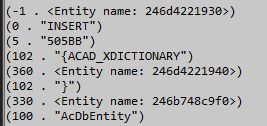
UPDATE: The lisp now dissects any entity, not just a block.
A Reminder:
These blog posts are not the exercise. The code is the exercise, and that is where most of the useful information is to be found. If you only read my post and skip over the code block …
Image: The MPD logo. Basic. To the point. Just like MPD.
I really stressed over titling this article this way. "Awesome" has become another perfectly useful term to find itself tossed into the refuse pile of formerly 'cool' terms. That's so sad.
We learned about writing AutoLISP to select an area in model space. We learned about using those coordinates to do something else, specifically to draw four lines making a rectangle.
Then we learned about using the 'mapcar' function to generate lists …
This codeblock (below) is a complete AutoLisp program. Load it into a running instance of AutoCAD and issue the command DOAMAPCAR. Nothing will happen on the screen, but you will see quite a bit of output into the console.
Up to now, Python has been my only programming language. Now there's AutoLisp. Once I discovered LISP routines in AutoCAD, I wanted to learn how to write and debug them. Until recently, there was no practical tangible reason for me to do that …
This month is the 3-year anniversary of the deployment of WeatherPi
When I built WeatherPi, I was trying for a robust, reliable, repairable Raspberry Pi based weather station. So far, it has lived up to every expectation.
WeatherPi has now lasted three times longer than either of two consecutive Accurite …
I'm sure everyone here knows all this, but it still bears repeating. Be safe out there.
Image: These people really do exist.
No matter to what lengths you go, you simply cannot be connected to the Internet without exposing yourself to bad actors out there who want as much data …
Documenting my journey to understanding the Pelican system.
This is intended to be a resource document for ordinary people interested in the Pelican static blog generator. It is a lot to read. It was a lot to write. My hope is that others may benefit from the effort.
Quite often, you'll find you can manufacture your own solution if you just keep trying.
I had finally gotten around to starting a small woodworking project I had put on hold for a long time. It was a relief to actually get some traction on it.
I miss the old Goldwing. But it only takes about three seconds on the new kid in town to lose any sense of reminiscence over saying goodbye to the old girl.
A long time ago, a guy named Skinner proposed that how we behave is a consequence of environmental histories.
We are either the giver or the receiver in interactions with our world. We stimulate, they react. They stimulate, we react. Both sides provide feedback to the other. This goes on …
A few weeks ago I was able to take the old girl out on a 510 mile road trip. I rode up to see my mother. It had been far too long, due in no small part to Covid. Other than my ride from NW Florida to Denver, this is …
Last night I finished converting all the content from my old WordPress Dr.Gerg site into markdown.
Another reason I'm happy is after literally decades of contemplation and half-hearted attempts, I finally made headway into IRC. That may not seem like much to most of you …
This Markdown cheat sheet provides a quick overview of all the Markdown syntax elements. It can’t cover every edge case, so if you need more information about any of these elements, refer to the reference guides for …
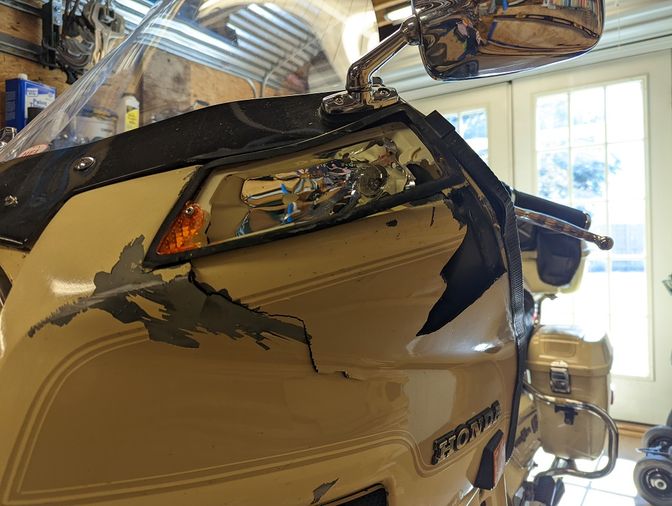
In our previous encounter, we ended with the really sad photo of the damage I did by violating one of my cardinal rules: "If you don't feel comfortable doing something, don't do it." The result was I smashed the fairing into the doorpost and broke my heart.
I came real close to deciding it was time to let someone else have my Rescue Bike. In the end, I decided we're not done with each other. So it was time to finish some repairs and get back on the road.
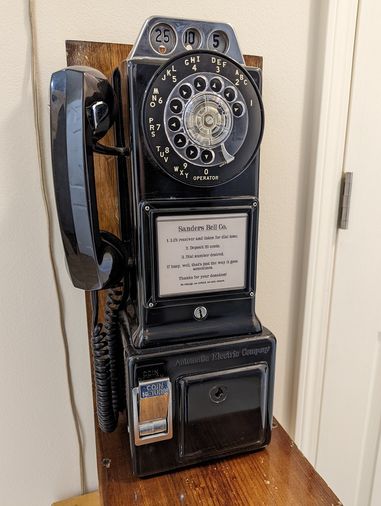
Many years ago, I was given this rebuilt payphone as a gift. It is fully functional, but the two locks are not.
The bottom lock is completely missing.
My granddaughter loves to drop coins in the slots and hear the bells ding, so we pull the door out and it …
Some time ago, one of the GPIO pins on WeatherPi stopped working. It was the one the tipping bucket rain gauge was attached to. I was able to move the wire to another pin, and change my program. Problem solved.
When the rain gauge stopped working again, I assumed I …
I recently read an article about how to speak in a manner that would make me sound more confident. There were good points in it.
While the writers were technically correct, their advice was sharply focused on a single aspect of communicating: presentation. There is much more to communicating than …
If you have more than a hundred lines in your Python script, remembering where in the flow any particular print output comes from can cause you pause. I felt like having the line number from my code would help me more quickly and easily recognize the output.
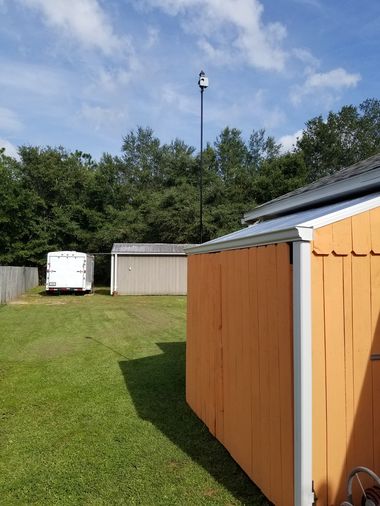
LilWeatherPi is the newest member of the PiNet family.
Why another WeatherPi? Well, I was concerned that my humidity readings may be skewed by the proximity of WeatherPi (the original) to the pool. There are times when the air is completely still, and I have actually measured the humidity with …
This article was brought here after 4 years at Hack-a-day.io.
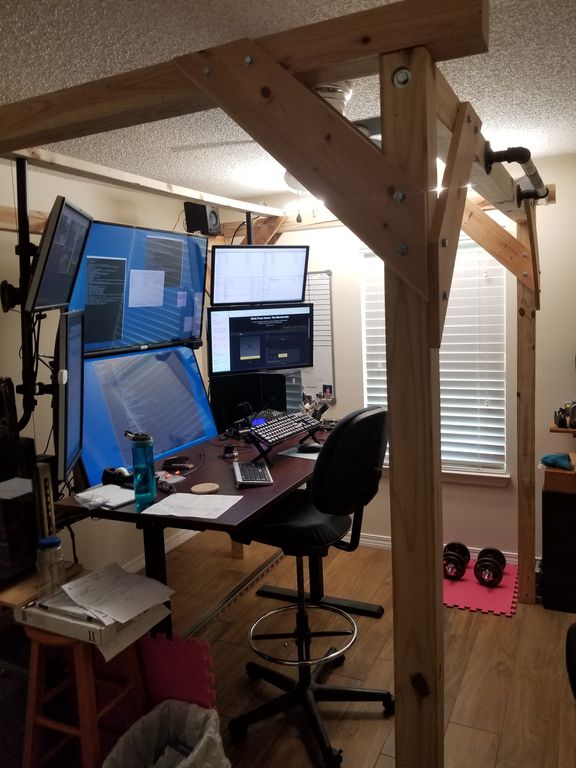
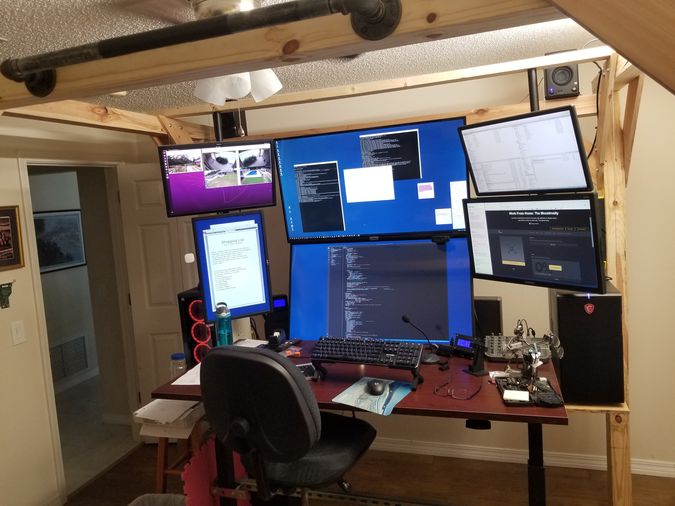
The Monstrosity is this 4x4 frame which allows me to build the workstation I need without marring or drilling any holes into the walls of our spare bedroom.
As you can see, there are 3 computers and six displays …
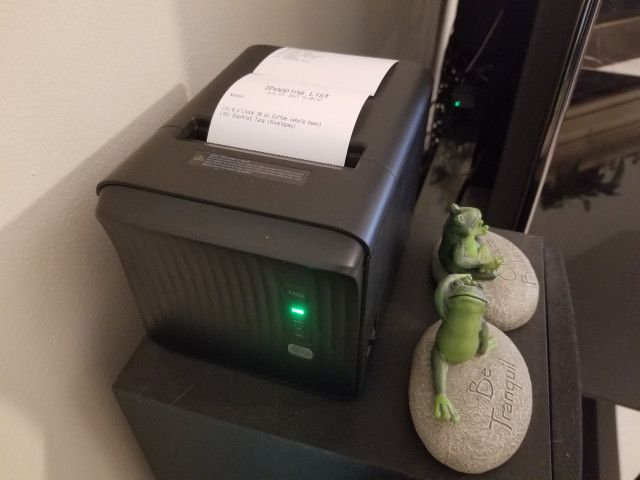
This is a follow-up to this post introducing an "spreadsheet to receipt printer" shopping list system.
There are downsides to everything, including paper shopping lists. The most frequently confronted downside to paper shopping lists is experienced when you reach into your pocket for the list, and realize you left it …
It has been really humid here for several weeks in a row. Rain nearly every day. But that doesn't explain the BME280 Temperature/Pressure/Humidity sensor saying we have 100% humidity nearly all the time. So I read up on it, and found several places where it was written that …
We've been around the block with shopping lists. From a piece of paper with handwritten notes to desktop PC created lists printed on 8.5x11" paper to apps like Out of Milk on the phone, we've done it all.
And we've been less than happy with all those. Now that …
OMG. Finally! I've been trying to find a low-cost crimper for Dupont-style open-barrel pins and sockets for years. After purchasing a couple of tools that failed to fully measure up, I finally have one that crimps these little guys perfectly.
I've printed a bunch of parts on the Prusa printer. But today (yesterday, actually) I printed the smallest functional part I've ever done. Roughly 7x7x5mm. Tiny thing.
The tiny thing is part of PoohPi.
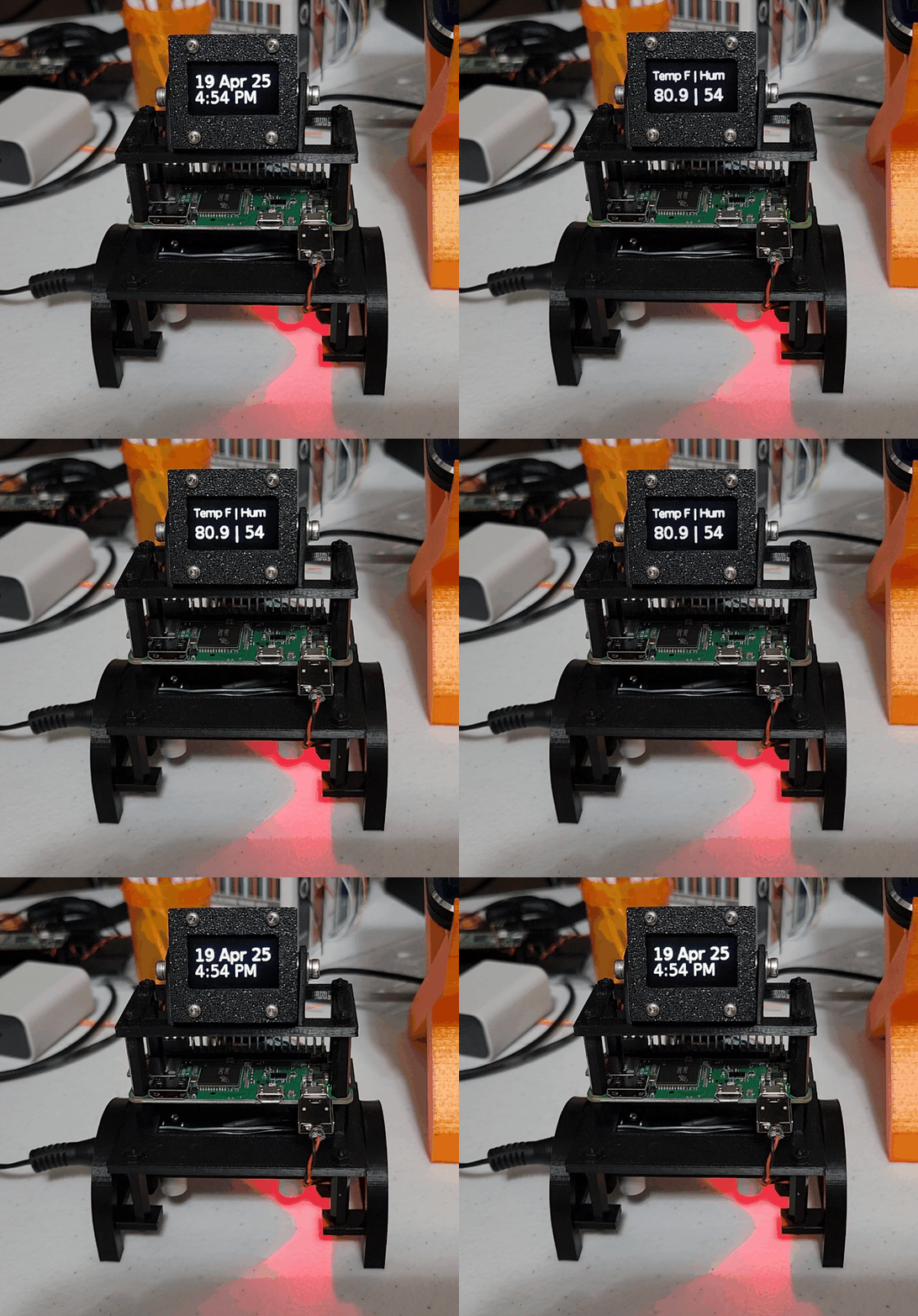
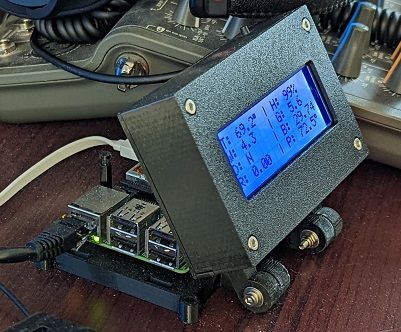
PoohPi sits at my wife's desk and greets her every morning with statistics that will inform …
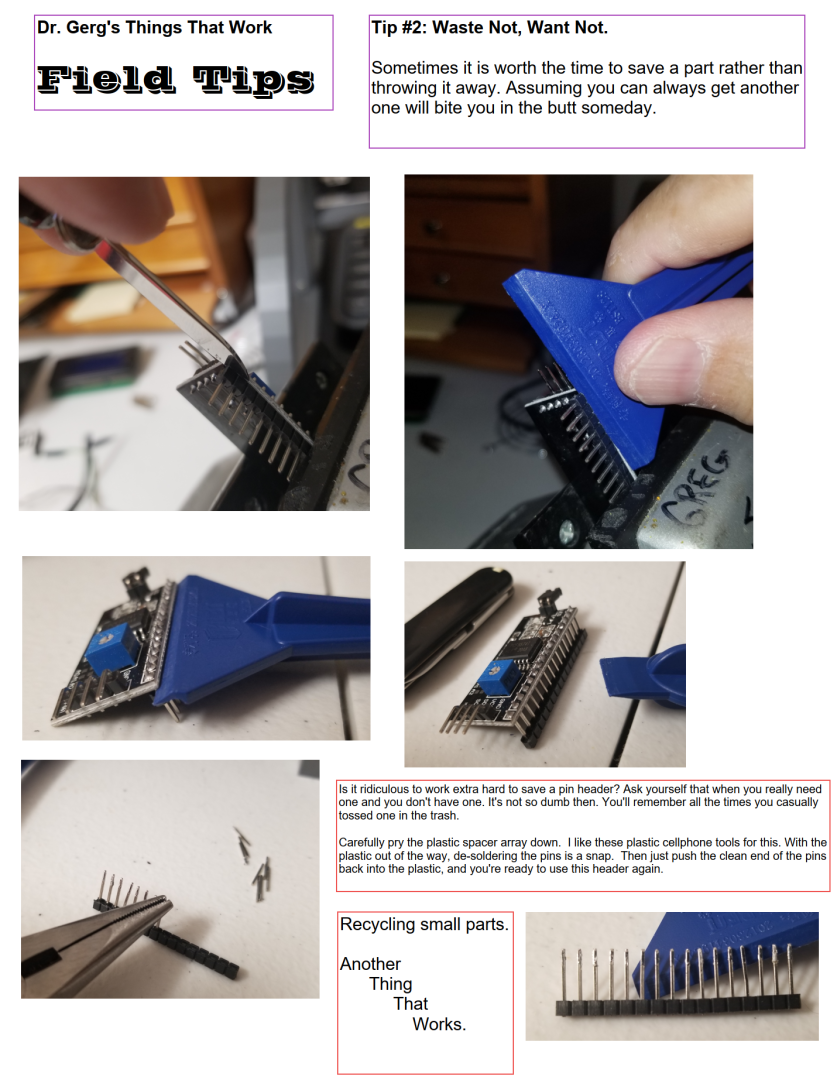
Here's another model in my project. It's a 2-row 16 character per row LCD screen with an i2c interface module attached. I'll be using this to display whatever I want on my portable project.
You may be wondering what the value of this is. The value is in fitting this …
Surely, among the MILLIONS of people who are regularly devouring every word I write here on this blog, someone has asked the question, "Why go to all the trouble of building your own bespoke home automation system when there are great open source offerings like OpenHAB and Home Assistant out …
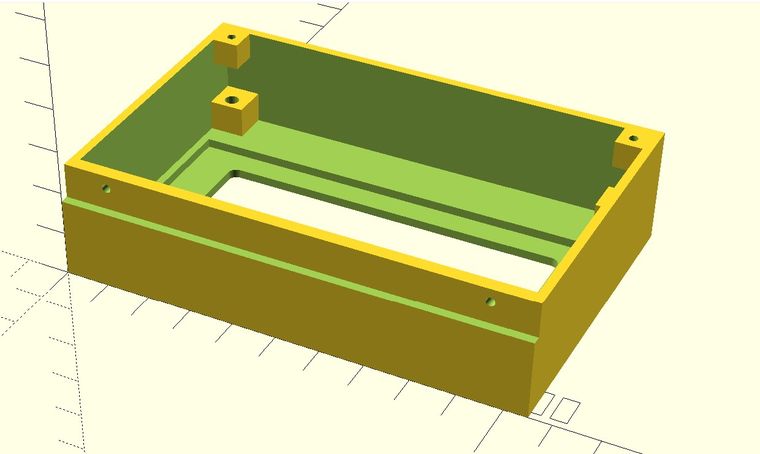
When I build things using the Prusa 3D printer, I like to also create a model of the part I'm making brackets or enclosures for. That way I can see how the whole thing is going to fit together without making bad assumptions about how any particular part is going …
Nothing has really changed. Sure, we speak with sophistication, wear finely woven fabrics and adorn our feet with coverings to enhance or protect. We are able to keep ourselves out of uncomfortable circumstances for the most part. We adjust the way we smell to make close proximity less revolting, or …
For years I've wished I could recycle laptop displays instead of just throwing them away. It just seemed so unnecessarily wasteful. Now I can reuse them thanks to some enterprising people in China and eBay.
Using this driver card and cables, I was able to build a Raspberry Pi development …
I just re-discovered OpenSCAD. I say 'rediscovered' because I knew it existed, I just didn't know I liked it so much. It took finding a book called "Mastering OpenSCAD" by Jochen Kerdels to get me over the hump. The text of the book is available online as well. I bought …
How do you know anything? Most of us never ask the question.
We engineering types want to know how things work. We'll spend tons of time learning how things works so that we can make things do what we want them to do. So …
I want to talk about truth. ("Oh boy, here he goes . . . ")
You might be inclined to think the definition of truth is pretty well settled. A lot of people believe that, and for a lot of those people, there's no need to even talk about what truth is. So I'm …
Now this could be a problem. We have new silverware (stainless steel, actually, but you know what I mean). First time in the dishwasher we discover the handles of the large spoons and forks will only fit in a few of the slots in the silverware tray. This not only …
I don't think we will EVER get there. I've been sitting in this back seat for most of my life. Every time I ask the people in the front seat how much longer, they say stuff like, "About two minutes less than the last time you asked."
The GE air conditioner came with a cute little remote, and WiFi connectivity. Of course, the window unit wants to connect with GE's servers. I'm not a fan of the concept.
I like knowing what the temperature is in my back yard.
And the rainfall amount when it's raining. And the wind speed and direction. That's why I've had a weather station in my backyard for several years now.
We had two Accurite stations in two years. Both crapped out after …
I've always been curious about coding, even before I knew it was called that. When I became aware of the first personal computers that weren't just game consoles, I wanted to be able to make it do what I wanted. But I didn't know how to …
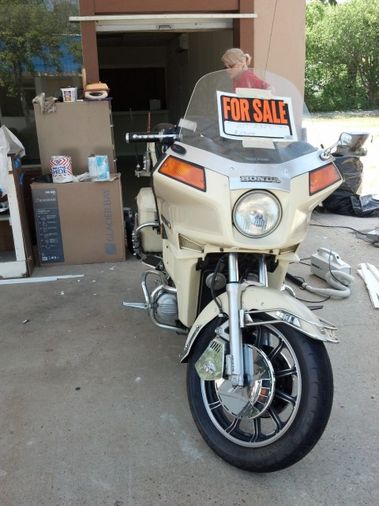
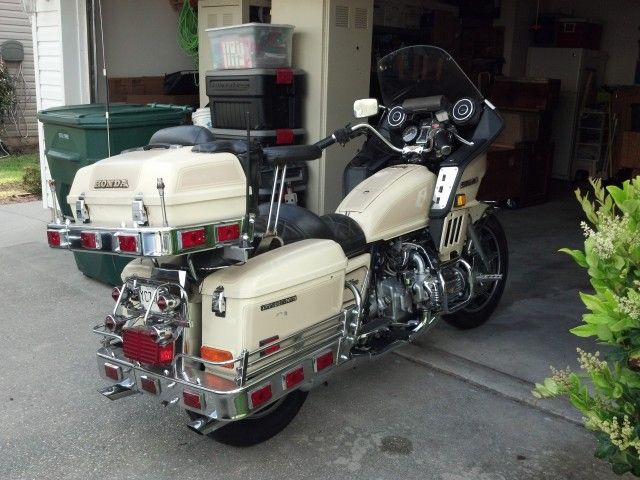
This is a retrospective of sorts. The project started in the spring of 2013 when I saw this 1983 Honda GL1100i at a second-hand store on U.S. 41 in Hahira, Georgia.
The bike was loaded down with every conceivable piece of aftermarket bling known to man. I'm sure someone …
For decades, I wanted a simple way to keep track of whether my garage door was open or closed.
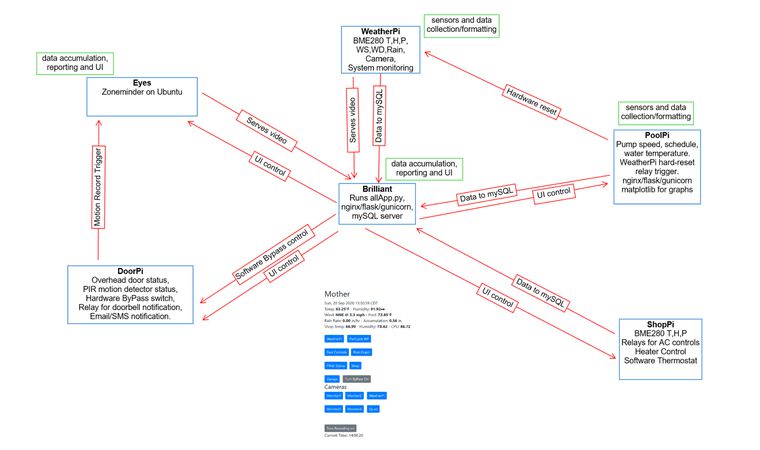
I started this project in 2015 and it does exactly what I need. The project eventually morphed into a component of what I have come to call my PiNet, a network …
It's the middle of January, 2021. You know what that means, don't you. We're waiting to see what is going to happen. If you're like me, you feel a bit of trepidation about the future. You may be feeling a bit vulnerable. A bit unsettled. A touch afraid.
Eight Raspberry Pi's and two desktop computers, what is now called PiNet started six years ago as a simple wish to know whether the garage door was open or closed.
the garage door
It started in 2015 with my wish to know whether my garage door was open or closed …
This love is a slow love,
This love don’t move too fast,
This love was in the first place,
This love will be the last.
This love can bring me to my knees,
This love can give me wings.
And carry me to heaven high,
Or bind me with …
With all that is within me,
I will choose serenity,
accepting the things I cannot change,
standing courageous to change the things I can,
and seeking wisdom to know the difference.
Living one day at a time,
enjoying one moment at a time;
accepting hard work as a path to …
I am.
What more is there to say?
I wake to find the dawning,
Another Earth-bound day.
Another quest which lay,
Before my feeble feet.
Another hour of effort,
Exchanged for bread and meat.
I am.
Alone it should suffice.
To breathe, to laugh, to struggle,
Between the fire and …
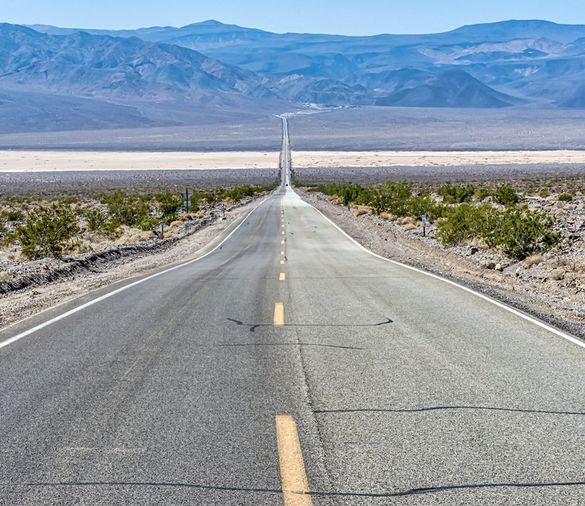
This is my highway.
It stretches true and straight
as far as the eye can see
from mountain to mountain,
without hint of ambiguity
or duplicitous intent.
This is my road.
It waits, neither friend nor foe,
impassionate, trustworthy, honest.
And when upon it I step with the load I …
When day alone is not enough,
To illuminate my soul,
When I eat life dry and tough,
And force to swallow whole,
When the wind of circumstance
Blows cold against my skin,
It is then, only then I truly know,
How blessed I am
To hold your hand.
Some people think that dogs are dumb,
but that's a mistake as a rule of thumb.
They sucker you in in their hang-dog way;
when you're asleep they commence to play.
It's late at night and the puppy's bored,
she's looking around for a brand new toy.
Sneaks into the …
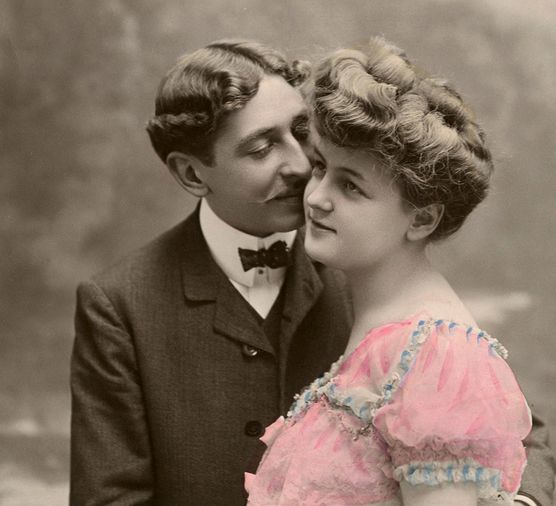
Every woman is beautiful. Deep in the eyes of all women shines the hopeful expectancy of a young girl gazing up at her father with all the wonder, trust and love of the whole world sparkling. If you look past the hurt, past the fear, beyond the suspicion, yes, even …
Some are like the towering oak,
impervious to the storm.
Some are like the grass that patiently
crumbles great mountains beneath its roots.
Some are like the apple or plum,
yielding up their fragrant fruit.
But I am like the sunflower,
easily bending, long and spindly,
face following the sun …
 Who can not love faces like these?